
Most gyms and studios start the same way. A notebook at the front desk, then an Excel file, then a second Excel file because the first one got messy.
A few years later, the "member list" is really three or four lists. Some names appear twice. Phone numbers are written five different ways. Nobody is completely sure which expiry dates are still correct.
Moving to a gym management system fixes this, but only if you move clean data. Import a messy file and you get the same mess in a new place, now sending reminders to the wrong people.
The good news is that a careful move takes a few focused sessions, not weeks. Here is a step-by-step way to do it, whether your records live in Excel, Google Sheets or a ring binder.

1. Clean Your Data Before You Move Anything
Make a copy of your file and work on the copy. Keep the original untouched until the whole move is finished.
Then work through these four clean-ups, one column at a time.
01Remove Duplicates
Sort by name, then by phone number. Members who rejoined after a break often have two rows. Keep the most recent one, and copy over any notes worth keeping before you delete the older row.
02Fix the Phone Number Format
Pick one format and use it everywhere, such as 60123456789 or 012-345 6789. Remove notes like "(wife)" and second numbers squeezed into the same cell. A correct number is what lets WhatsApp reminders reach the right person.
03Use One Date Format
Excel often mixes 03/04/2026, 3 April and 2026-04-03 in the same column. Is that March or April? Convert every date to one format. YYYY-MM-DD leaves no room for doubt.
04Standardise Plan Names
"Monthly", "Bulanan", "Monthly Basic" and "RM120 plan" may all be the same plan. Agree on one name per plan, with its price, and replace every variation.
2. Decide Which Columns You Really Need
Old spreadsheets collect columns nobody uses. Before you import, decide what each member record should hold. A practical starting set:
- Full name — as the member would recognise it
- Phone — one number, one format
- Email — unique for each member
- Plan — matching your plan list exactly
- Joined date — when they first signed up
- Next billing date — when their next payment is due
- Status — active or inactive
- Emergency contact — name and phone, if you collect it
Leave everything else in the old file. Columns like "remarks 2" or "old price" rarely deserve a place in the new system.
Check consent while you're at it. Malaysia's PDPA expects you to keep personal details only with the member's agreement. If you have signed registration forms, file them safely.
3. Import a Small Batch, Then Spot-Check
Most systems give you an Excel template. Use it instead of your own layout, because the column names need to match.
In VynexFit, the template is one workbook with sheets for memberships, trainers, members, payments and classes. Add your plans first, then your members, so each member's plan can be matched by name.
When you upload the file, VynexFit checks it and lists any problems row by row, such as a plan name it can't find or a date it can't read. Nothing is saved until you confirm, and you tick a box to confirm your members agreed to you storing their details.
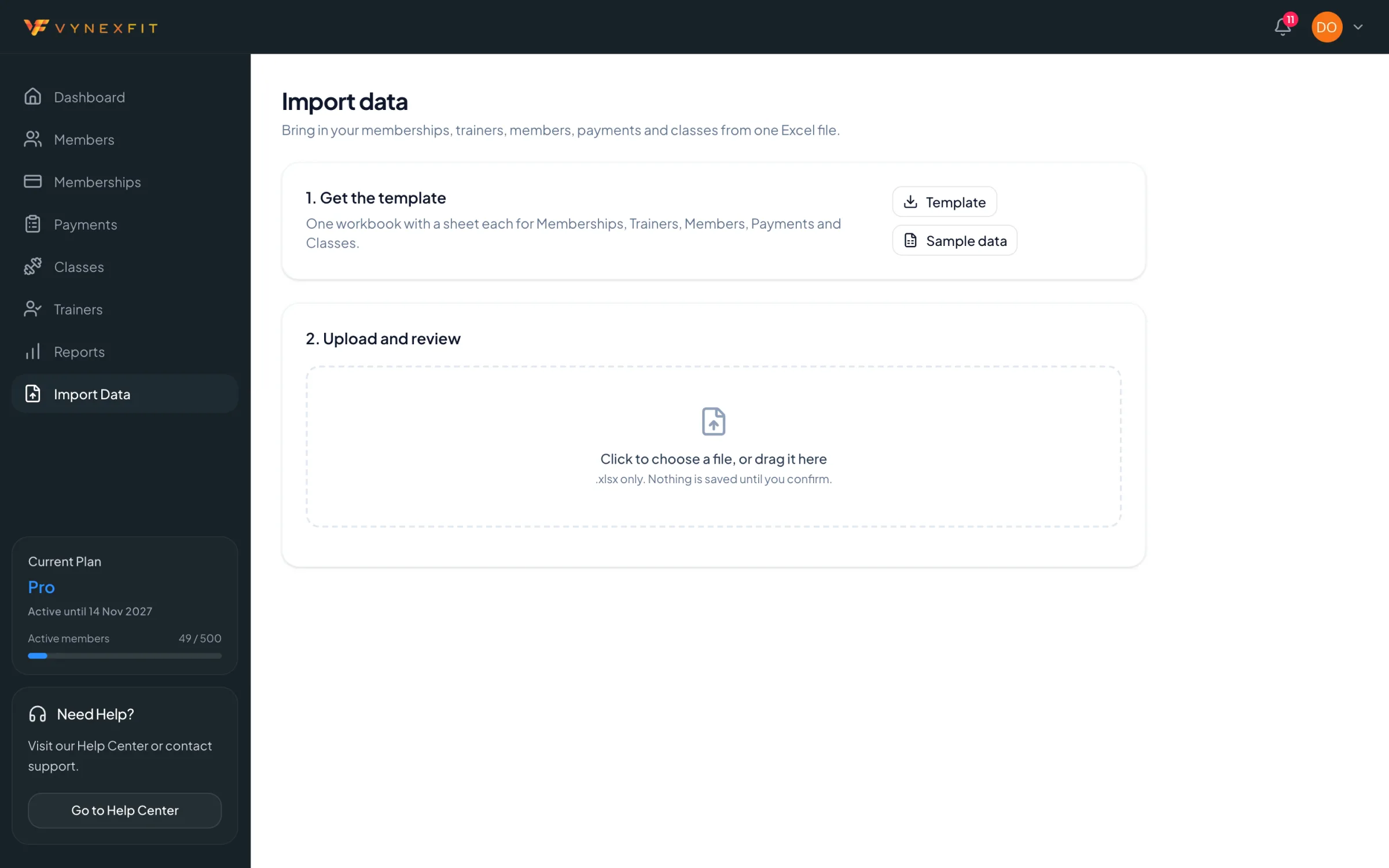
Start with a small batch, such as 20 members. Open five of them and compare each one with your old file: name, phone, plan and dates.
If the batch looks right, import the rest. Then open ten members at random and check again. If two or three are wrong in the same way, the cause is usually a whole column, so fix the source before you go any further.
4. Check Every Next Billing Date
This is the step most owners rush, and it's the one that matters most.
A management system uses next billing dates to show who is due soon and who is overdue. In VynexFit, they also drive the automatic WhatsApp and email reminders. A wrong date means a member gets chased for money they already paid, or never gets reminded at all.
After importing, sort your members by next billing date and look for these warning signs:
- Past dates for members you know have paid
- Dates far into the future
- Blank dates for active members
- Plans that don't match the price paid
Quick test:Ask the front desk for five members who paid this week. Their next billing date should be about a month away, or a year for yearly plans.
Turn on automatic reminders only after this check is done. A day spent on dates is better than an awkward apology to a member who paid on time.
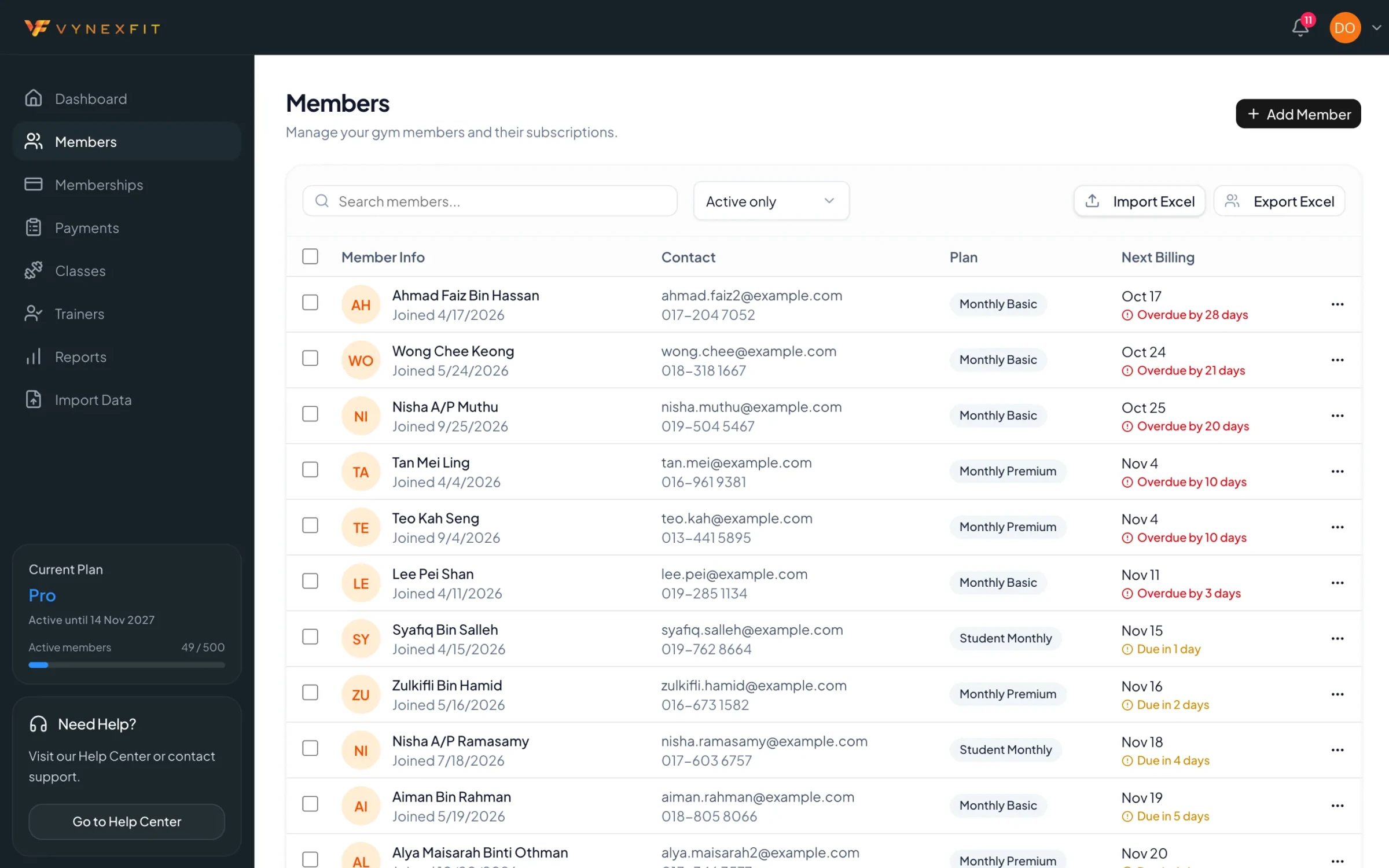
You can see more of how the list works on the member management page.
5. Run Both Side by Side for Two Weeks
For a short period, record every new payment and sign-up in both places: the old file and the new system.
Two weeks usually covers enough busy days to show any gaps. At the end, compare totals. If active members and payments recorded match, you're ready to switch.
Use this time to brief your staff and trainers on what is changing:
- Where to look up a member from now on
- Who records payments, and when
- What to do if a record looks wrong
- The date the old file stops being updated
Keep the parallel run short. If it drags on for months, people keep using whatever feels familiar, and you end up with two lists again.
6. Archive the Old File, Don't Keep Editing It
On switch-over day, save the old file with a clear name, such as "Members archive Nov 2026", and make it read-only.
Store it somewhere safe, not on the front desk computer's desktop. It holds personal data, so treat it like any other confidential record.
From that day, the new system is the only place to update. If someone spots a mistake, they fix it in the system, not in the archive.
Paper records too:If your history lives in a notebook or ring binder, you don't need to type in every member from 2019. Enter current members only, then store the binder safely.
Your Moving-Day Checklist
Print this or save it on your phone:
- Back up the original file
- Remove duplicate members
- Use one phone number format
- Convert dates to YYYY-MM-DD
- Match plan names to your plan list
- Confirm member consent
- Import a small batch and spot-check
- Check every next billing date
- Run both side by side for two weeks
- Brief staff and trainers
- Archive the old file as read-only
The move takes some effort upfront, but it pays back every month after. Find out how many admin hours you could save with our admin-time calculator.
FAQ
How long does the whole move take?
For most small gyms and studios, cleaning the data takes the longest. Once the file is clean, the import itself is quick. Plan a few focused sessions rather than squeezing it in between classes.
Should I import former members too?
Only if you plan to contact them, for example to invite them back, and they agreed to you keeping their details. Otherwise, keep them in the archived file and import current members.
What if some details are missing?
Import what you have and fill the gaps over the next few weeks as members come in. A missing email can wait, but an active member without a phone number or billing date should be fixed first.
Conclusion
Moving your member list is less about software and more about tidying up years of records. Clean data, correct billing dates and a short side-by-side run make the switch smooth.
Do it once, do it carefully, and you'll have one member list your whole team can trust.